![Main - White500.png]](https://help.eletive.com/hs-fs/hubfs/Main%20-%20White500.png?height=35&name=Main%20-%20White500.png)
Target audience: Administrators, Managers, Employees
The AI Writing Assistant helps employees and managers communicate more clearly and professionally in surveys and comments. Whether it’s crafting anonymous, well-phrased feedback or writing empathetic responses, this feature provides instant language support directly within the platform. By improving the quality and tone of both input and replies, it strengthens dialogue across the organization, leading to richer insights and greater trust.
Key features
- AI-powered comment support: Helps employees write clear, constructive, anonymous feedback.
- Tone & language adaptation: Adjusts writing style, tone, and clarity for better communication.
- Translation support: Instantly translate comments and replies to supported languages.
- Anonymization support: Rewrites comments to reduce identifiable language while retaining intent.
- Suggested replies for managers: Generates empathetic, professional drafts that save time and build trust.
Enable the AI Writing Assistant Feature
- Go to Settings → Features
- On the AI card, turn on AI writing assistant
- Click the settings icon (⚙) on the AI card to open AI settings. Here you will access specific settings for AI-powered features that use AI Credits. For more information on AI credits, see this article.
- In the AI-specific settings, you can see that the feature is divided in two subfeatures, Rewrite comments and Conversation drafts for managers.
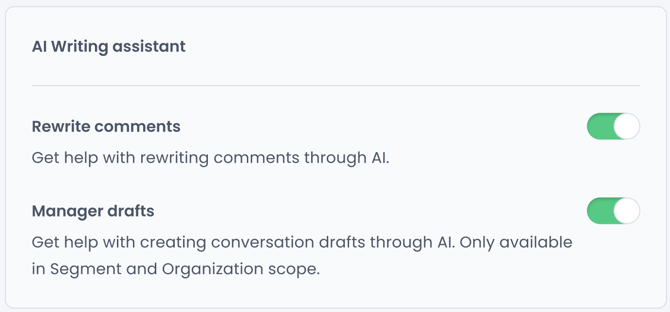
- Enable the sub-features based on your preferences
How to use Rewrite comments
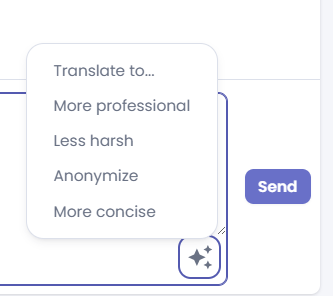
- Write your comment as usual
- Click on the AI Assistant icon
- Select a rewrite option (e.g. "translate to..." or select a desired tone)
How to use Manager drafts
- When working with conversation and messages
- Click on the AI assistant icon
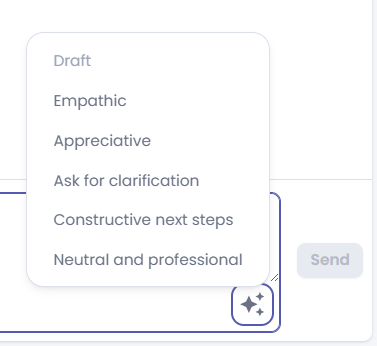
- Select a Draft option (e.g. )