![Main - White500.png]](https://help.eletive.com/hs-fs/hubfs/Main%20-%20White500.png?height=35&name=Main%20-%20White500.png)
Target audience: Administrators
Before starting, a more general description of the Custom Survey feature can be found here: Introduction to Custom Surveys.
Who can manage Organization Custom Surveys?
Only administrators can create and manage Custom Surveys at the organizational level.
However, survey results can still be viewed on segment level depending on:
- The survey settings
- The number of respondents
Create a new Organization Custom Survey
- Navigate to Custom Surveys in the left side bar
- Select Organization in the report level selector
- Click Add new survey
Creating a Custom Survey consists of three steps. You can between them using Previous and Continue at the bottom of the page.
Step 1: General information
Set survey title
Give your survey a clear and descriptive name.
Select target group
- By default, the survey is sent to the entire organization
- To target a specific group, select one or more segments
Users included in any selected segment will receive the survey. Note that these users may also belong to other segments (e.g., gender or department), meaning results may appear in those segment reports as well.
Exclude data from segments (optional)
If you do not want survey data to appear in certain segment reports:
- Use Exclude data from segments to remove specific segments
- Or select Exclude all segments except the targeted ones to restrict visibility entirely to the chosen target group
Click Continue to proceed.
Note: You must add a survey title before continuing.
Step 2: Preview survey questions
In this step, you build your survey content.
Add questions
- Click Add question
- Choose a question type:
- 1–5 scale
- Multiple choice
- Text
- NPS
- Enter the question details and click Add Question
Repeat these steps to add all desired questions.
Manage questions
- Edit or delete questions
- Change the order of questions
Translations (optional)
You can translate questions into multiple languages:
- Go to the Translations section
- Select a language
- Add translations for each question
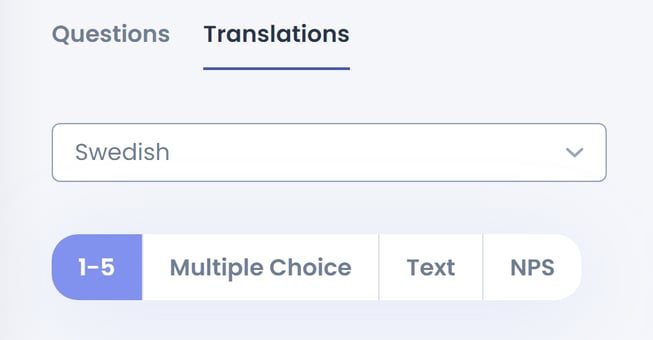
When finished, click Continue.
Note: Unlike recurring Engagement Surveys, Custom Surveys do not include the Comments feature. Instead, if you would like to collect qualitative feedback from the participants, this can be done using free-text questions.
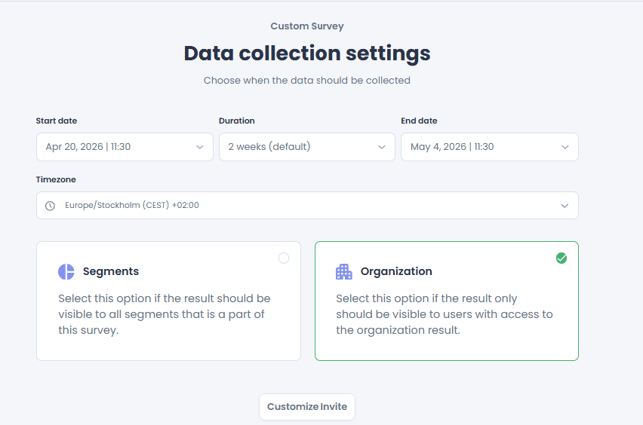
Step 3: Data collection settings
Define when the survey runs and how results are shared.
Set timing
- Select a start date
- Choose a duration (end date is set automatically)
Note: Duration cannot be changed after the survey has started.
Choose result visibility
- Segments
Managers, analysts, and administrators can view results for segments they have access to - Organization
Only administrators and analysts can view results (not accessible to managers)
Customize invite (optional)
Click Customize invite to edit:
- Invitation email
- Reminder emails
Launch or Save as draft
- Click Launch to send the survey
- Or click Save as draft to finish later
Note: If you open a saved draft, you will land on step 2: Preview Questions. To edit the survey title or target group, scroll down and click Previous to return to step 1.