![Main - White500.png]](https://help.eletive.com/hs-fs/hubfs/Main%20-%20White500.png?height=35&name=Main%20-%20White500.png)
Taget audience: Managers
Before starting, a more general description of the Snapshot feature can be found here: Introduction to Snapshot surveys.
Who can create and manage Snapshot surveys on segment level?
Both administrators and managers can create and manage Snapshot surveys on segment level. As a manager, you can manage a Snapshot survey if you have access to the segment it was created from. An administrator must first enable this for managers.
Keep in mind that results may also be visible in other segments, depending on the survey settings and how many people have responded.
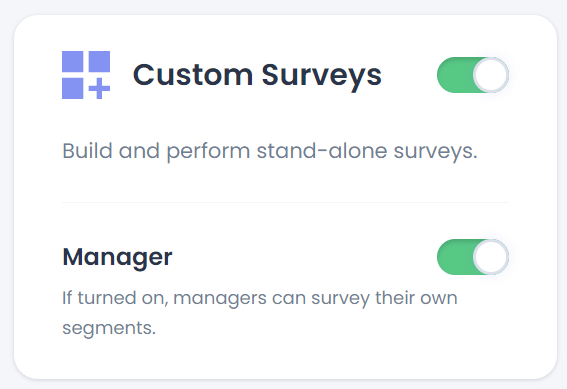
Add a new Snapshot survey on segment level
- In the segment selector, choose the segment you want to create the Snapshot survey from. If you only have access to one segment, it's selected automatically.
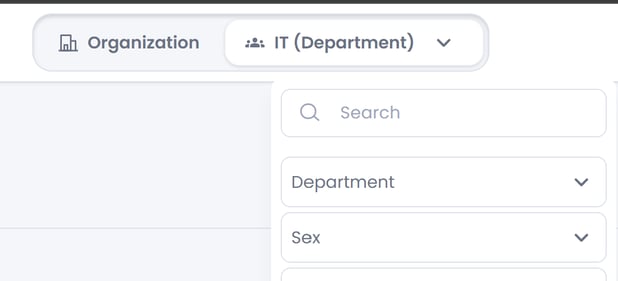
- Click Add new survey.
Creating a Snapshot survey takes three steps. You can move between them using Previous and Continue at the bottom of the page.
Step 1: Let's get started
- Enter a Survey title. You need a title before you can continue.
- Choose who should receive the survey. By default, it's sent to the entire organization. If that's what you want, leave the target group empty. To send it to a specific part of the organization, select the relevant segments.
- Decide where the results should appear. Everyone in your selected segments will receive the survey, but they may also belong to segments in other attributes, such as gender. Those segments' reports will then include the new data too. To prevent this, use Exclude data from Segments and select the segments to leave out. To show the results only in your target group, check Exclude all segments except the targeted ones.
- Click Continue.
Step 2: Preview Survey Questions
IHere you create and manage the survey questions.
- Click Add question.
- Choose a question type: 1–5 scale, Multiple choice, Text, or NPS.
- Fill in the question details and click Add question.
- Repeat until you've added all your questions.
- In the Questions section, you can review and edit your questions and change their order.
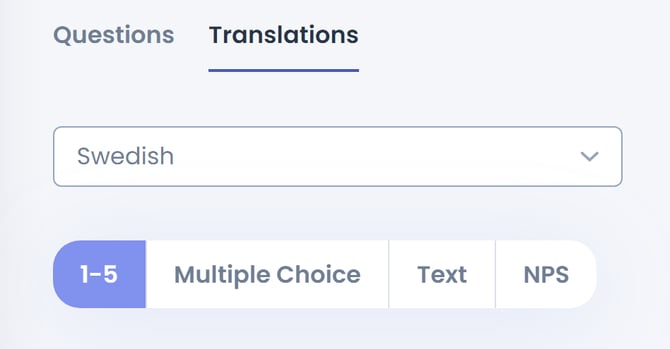
- To translate your questions, go to the Translations section, select a language, and add a translation for each question
- When you're done, click Continue.
Note: Snapshot surveys don't include the Comments feature found in recurring Engagement Surveys. To collect open feedback, add a Text question instead.
Step 3: Data Collection settings
In the last step, you decide when the survey runs.
- Select a start date and duration. The end date is set automatically. You can't change the duration once the survey has started.
- If you want to change the invitation or reminder emails, click Customize invite.
- Click Launch when you're ready. If you're not ready yet, click Save as Draft in the top right corner.
Note: When you open a draft, you start at Step 2: Preview Survey Questions. To change the title or target group, scroll to the bottom of the page and click Previous to go back to Step 1.