![Main - White500.png]](https://help.eletive.com/hs-fs/hubfs/Main%20-%20White500.png?height=35&name=Main%20-%20White500.png)
Target audience: All Eletive users
Eletive Copilot is available in two modes depending on your choices:
As a base, Eletive Copilot is trained on Eletive's Help Center to answer questions about features, settings, and platform setup in your choice of language.
By default, Eletive Copilot also has access to your account data, allowing you to explore survey results through natural language questions. This makes it easier to uncover insights and take action directly within the platform. If you prefer to disable data access for Copilot, see this article.
AI Credits
All requests processed by Eletive Copilot use AI Credits — including requests made in standard mode, such as questions about features, settings, and platform setup. Learn more about AI Credits here.
Note: Comments AI operates independently from Copilot and does not require account data access to be enabled. It also does not consume any AI Credits. Read more about Comments AI.
How to find Copilot
You'll find the Eletive Copilot in the top right corner, look for the icon Ask Copilot

Click on it to start a chat and prompt it with your question(s).
It will read your question and get back to you with a reply.
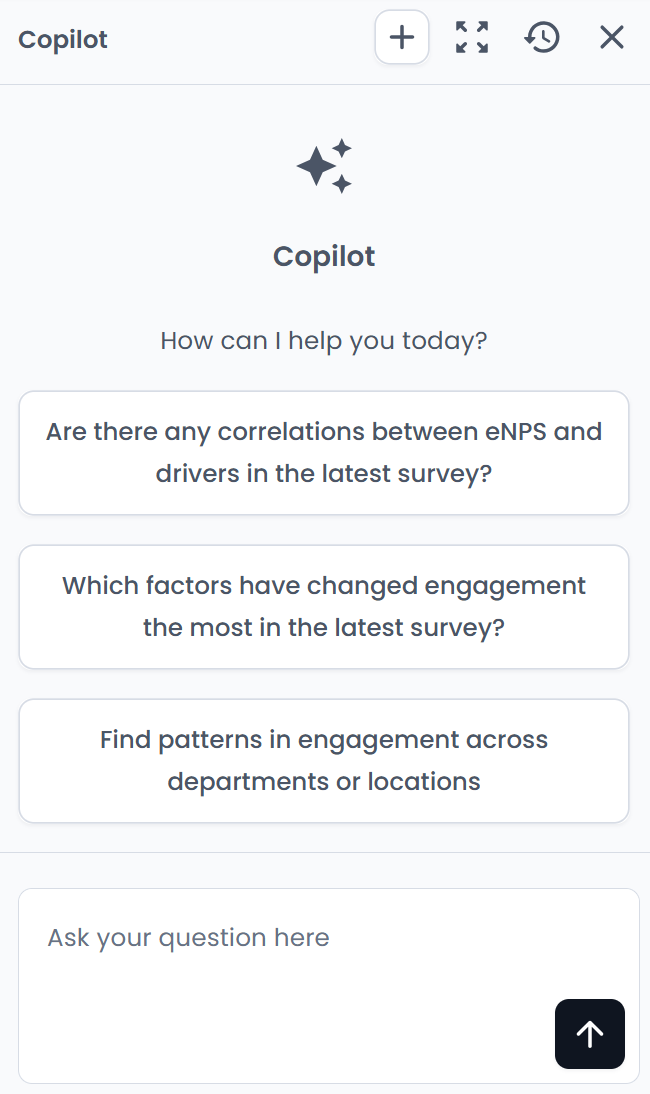
From the header section in the chat window you can:
- Click on + to start a new conversation
- Click on the Expand symbol to expand the chat window
- Click on the clock symbol to access old conversations (last 30 days)
Using Generate Summary for Quick Insights
If access to account data is enabled for Copilot, you can use the Generate summary button in the engagement report to get an AI-powered overview of survey results. Managers can use this feature to quickly understand key findings from their team's feedback.
The generated summary takes into account the date interval selected in the date picker in the top left corner of the report. A general tip is to limit the interval to a relevant timeframe, such as the last quarter or the latest survey sendout, to get more focused and recent insights.
The generated summary is displayed in Copilot's chat interface, where you can ask follow-up questions for further analysis and drill-down into the data.
Example questions to ask:
-
What's changed in my team since last quarter?
-
Which driver dropped the most, and when?
-
What topics to bring up based on latest results?
This conversational approach lets you explore specific trends and insights tailored to your needs.
Export Copilot answers to PowerPoint
You can export Eletive Copilot’s analysis to a PowerPoint presentation directly from the Copilot chat. Ask Copilot to export, for example “Export this to PowerPoint”. Copilot may also suggest a PowerPoint export when an answer is suited for a presentation.
All charts in a Copilot PowerPoint export are native PowerPoint charts, not images. You can edit the charts directly in PowerPoint, for example to change colors, labels or layout.
A Copilot PowerPoint export uses your organization’s custom PowerPoint design template, the same as report exports. If an administrator has set a primary color and cover image, the Copilot export uses them automatically. See Custom PowerPoint design template for report exports.
Exporting from Copilot requires that Copilot has access to account data.
To export a report from the report page as a PowerPoint presentation using the standard Eletive template, please read this article.
Get Tailored advice on survey questions
With Eletive Copilot, you can get AI-powered advice tailored to the results for each question in a specific segment. This helps managers to move from insight to action by getting concrete suggestions based on how their team has actually answered.
The tailored advice is currently only avaliable on segment scope.
How to use Tailored advice
- Open the engagement report and click on a driver.
- Find the question you want to work with and click Advice to the right of it.
- Choose one of the two options:
- Tailored advice: Copilot analyzes the results for that specific question, such as the score, the change since the previous period and the comparison benchmark, and gives you suggestions adapted to your situation.
- General advice: General best-practice guidance on the topic of the question.
Note: We're continuously improving the accuracy of the Copilot's responses.