![Main - White500.png]](https://help.eletive.com/hs-fs/hubfs/Main%20-%20White500.png?height=35&name=Main%20-%20White500.png)
Target audience: Administrators and managers
Note: Snapshot Surveys were previously called Custom Surveys. The feature works the same way, the new name better reflects what it is built for.
A Snapshot Survey is a short, fully anonymous survey on one topic that you can launch whenever you need a clear read on something specific. Ask the right questions, get honest answers, and know where to focus next.
You build the survey yourself from four question types and send it to a targeted segment or to the whole organization. Administrators can always create Snapshot Surveys, and managers can create them for their own segments if this is enabled for your organization.
Each Snapshot Survey has its own report, separate from the segment and organization engagement reports.
Anonymity and results
All Snapshot Surveys are fully anonymous. Answers are never linked to individual respondents, and there is no way to view or export responses per person.
Results become visible in real time once a minimum number of responses has come in. Until then, the report stays hidden so that no one can be identified from a small group of answers.
Employees can answer several Snapshot Surveys in one go, so it's fine to have more than one running at the same time on different topics.
When to use
Snapshot Surveys work best when you want a quick, honest read on one specific topic. Some examples:
- Following up on your engagement survey. Dig deeper into a specific driver between engagement survey cycles, for example workload or recognition in one department.
- Checking in after a change. Gauge sentiment after a reorganization, a new office setup or an acquisition, and compare how things look before and after.
- Recurring topic surveys. Ask the same short set of questions on a regular basis, for example about commuting habits or sustainability.
- Quick feedback on everyday things. What did people think of this year's company event? Which game should go in the game room?
Keep it short and focused. A Snapshot Survey is designed for one topic and a handful of questions. Shorter surveys get higher response rates and results that are easier to act on. If you have several topics, send several Snapshot Surveys rather than one long one.
Get started
Choose the article that matches how you want results to be available:
- Create a Snapshot Survey as an administrator: results can be shown at organization and segment level.
- Create a Snapshot Survey as a manager: results are shown at segment level only.
Note: Administrators can create Snapshot Surveys through either article. The choice affects where the results are available in the platform.
Navigation and states
Navigation and states
You'll find Snapshot Surveys under both the Organization and Segment sections in the left-side menu. Surveys are grouped into three tabs: Active, Closed and Drafts.
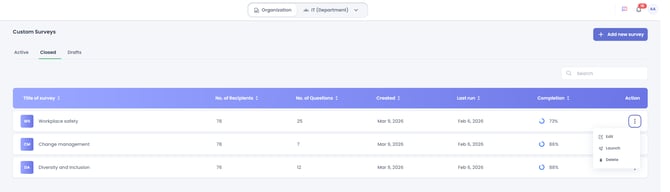
Click the action dots to the right of a survey title to edit, close, send reminders, launch or delete it. The available actions depend on the survey's state. Deleting a survey permanently removes all its data, including the report. A deleted survey cannot be found or reopened.
Active
Surveys that are still running. Once enough people have answered, you can open the report and follow results in real time.
Closed
Surveys that you closed yourself or that closed on their scheduled end date. If enough people answered, the report is available. You can edit a closed survey (but not add questions), relaunch it or delete it.
Drafts
Surveys you started but saved with Save as Draft instead of launching. If Snapshot surveys are not enabled for managers, this tab will not show.
Snapshot Survey reports
Every report shows the same summary at the top: the number of questions, the number of recipients, the date the survey was created, and its status (Active or Closed).
[Screenshot: report header. Retake to show the new name.]
The rest of the report depends on your questions, their types and the responses received. Snapshot Survey reports have their own structure, so they don't include every navigation and filtering option found in engagement reports.
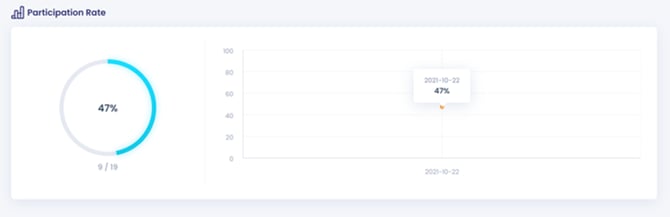
Participation rate
The first result in the report is the participation rate.
[Screenshot: participation rate]
Question Types
You can choose from four question types. Each one is described below with an example of how results are shown.
- 1 to 5 scale: Uses the same 1 to 5 answer options as the engagement survey. [Screenshots: 1 to 5 results]
- Multiple or single choice: Add as many answer options as you need. When you create the question, choose whether respondents can pick one option or several. This setting can't be changed afterwards. [Screenshot: multiple choice results]
- Open text: Collect free-text answers. Open text questions can always be skipped by respondents; this can't be changed. [Screenshots: open text results]
- NPS: Ask a question of your choice on a 0 to 10 scale. Results are shown the same way as the eNPS question in the engagement survey. [Screenshot: NPS results]
Note: Free text questions are designed to be skippable by default, it is not possible to modify this setting.