![Main - White500.png]](https://help.eletive.com/hs-fs/hubfs/Main%20-%20White500.png?height=35&name=Main%20-%20White500.png)
To mass edit users (add, edit and remove), press the Mass edit button and follow the instructions.

Templates
- Create new users - A blank csv file with 1 example row.
- Edit existing users - File with all existing users and their current data. Add new rows to create new users.
NOTE: When downloading file templates from Eletive, the CSV. file format and file content will be according to the accepted Eletive standards/format. However, global settings on your computer or software (e.g. Excel) may overwrite this when opening the file.
Also note that Excel and CSV are not the same file format, even though Excel can open and edit CSV files. Excel sometimes views and saves CSV files in strange ways, such as date format and value delimiter.
Instructions

Please read the instructions on the page.
For more detailed tips, guidance and resolving file errors read here: Mass edit - Tips and guidance
Upload
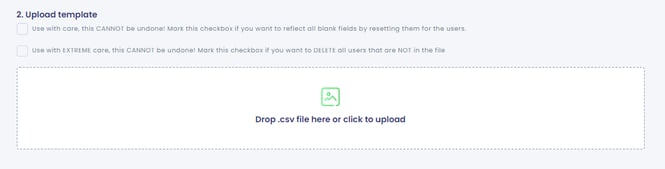
Upload options
There are optional upload options that can be used by enabling the checkboxes.
- Reset empty fields/attributes (Use with care)
- Delete users that are not in the file (Use with Extreme care)
If uploading the CSV file with the delete option checked, users that are not in the list will be deleted from Eletive. Once uploading the file the prompt below will pop up.
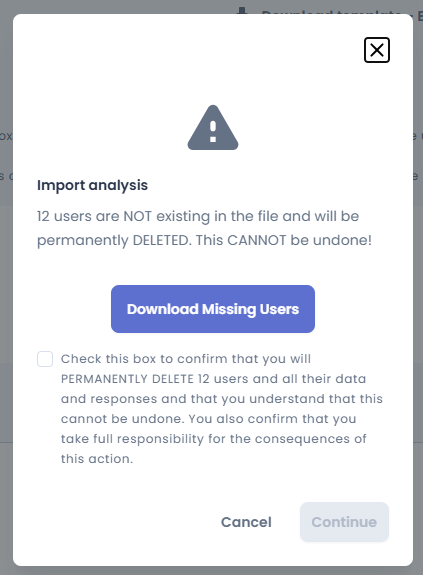
The "Download Missing Users" button will result in a new CSV file that contains a list of the users that will be deleted if proceeding with the upload. You have to check the informational checkbox in order to be able to proceed with the upload.
Note: It is possible to check both boxes when uploading the file, then both configurations will apply for the CSV file upload.
If not checking ANY of the boxes, empty fields will be ignored and no users will be deleted. Usually, this is the most common scenario.
Upload process
- Validation
- Cycle detection
- Creating new segments
- Delete users (if applied)
- Upsert users
- Attribute mutations
- Backdating changes (if applied)
File upload performance - what to expect
1. Start/initialization of upload
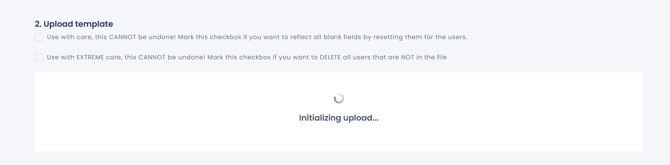
Ongoing upload processing

Note: The loading state above does not show if leaving/reloading the page.
This means that there still may be a an ongoing upload in the background. If attempting to start a new upload when there's already one ongoing you'll receive the following error message.
"A bulk import job is already in progress. Please wait for it to complete"
Upload process complete
Once the upload process is completed, you'll receive a "Upload complete" notification.
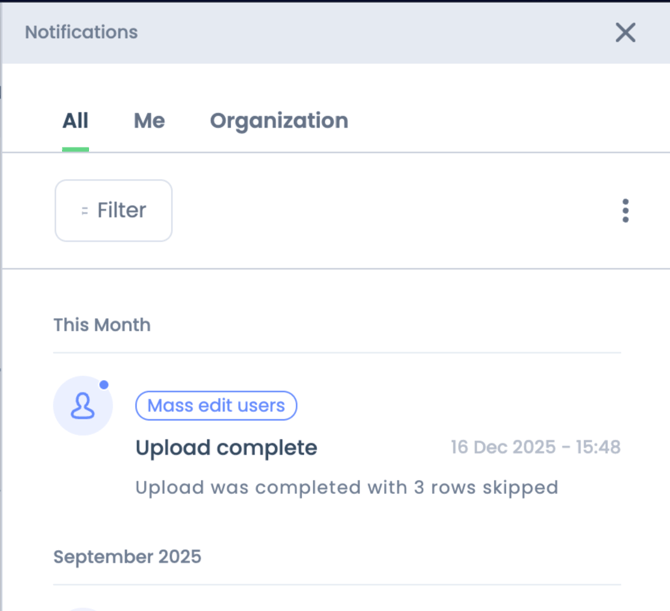
Latest upload section
In the Latest upload section you can see when the upload finished processing.
If the import finished with errors or failed entirely. An error log is available for download. 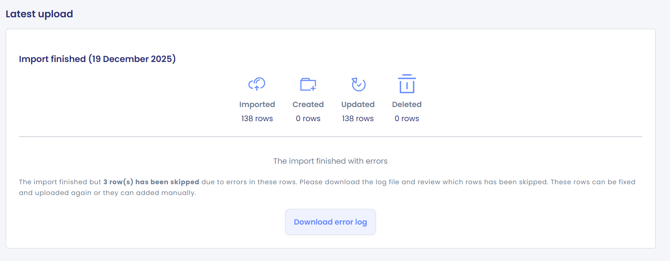 Read more here on error log explanations and general tips and guidance.
NOTE: The above guides you on how to remove mistakes in .csv-files before uploading them into Eletive. Eletive cannot guarantee consulting capabilities in other systems than Eletive such as Excel, Google Sheets, Microsoft Entra ID (formerly Microsoft Azure Active Directory) etc.
For this reason, Eletive does not do any consulting in other systems than Eletive, which is by default stated in the Terms and Conditions in customer contracts. We do hope that above stated common errors help you towards the successful uploading of your .csv-file.