![Main - White500.png]](https://help.eletive.com/hs-fs/hubfs/Main%20-%20White500.png?height=35&name=Main%20-%20White500.png)
Overview
Eletive integrates directly with HiBob using Apideck as a middlelayer, so employee data flows automatically from Hibob into Eletive. This guide walks you through the installation, setup process in Eletive, and what to expect once the integration is live.
Prerequisites
- An Eletive account with Administrator or Superuser role
- An HiBob account with Admin access
- HRIS integration available in your Eletive plan
Installation
-
The installation process is initiated from the Eletive platform.
In Eletive Go to Settings > Features. Enable the HRIS integration feature.This feature requires a sub-processor (Apideck) to handle Personal Data. First time enabling the feature you will be asked to accept this before continuing. Check the box and press Accept.
-
Go to Settings > Integrations . Then click Connect with HRIS in the top right corner. Search for "Hibob (OAuth)" and select it.
- Click on "Authorize" to trigger the installation flow, you'll be re-direct to a HiBob OAuth consent/authorization screen.
- Here you can see the 4 scopes that are required:
- company.metadata:read
- employee_data:read
- employee_data:write
-
- Once Authorizing, the Eletive app is installed in your HiBob environment, you will be re-directed back to the Eletive plattform. Proceed with integration configuration in Eletive in the next section.
Why does Eletive request write access if it only syncs data one way?
HiBob's API only returns a complete date of birth (YYYY-MM-DD format) birthday/date of birth attribute mapping when write permission is granted — read-only access returns a short birth date (DD-MM) that Eletive cannot use.
Eletive never writes data to HiBob. The write permission is required only to make the complete date-of-birth value available for syncing towards an Eletive date attribute that represents a user’s birthday.
Eletive configuration
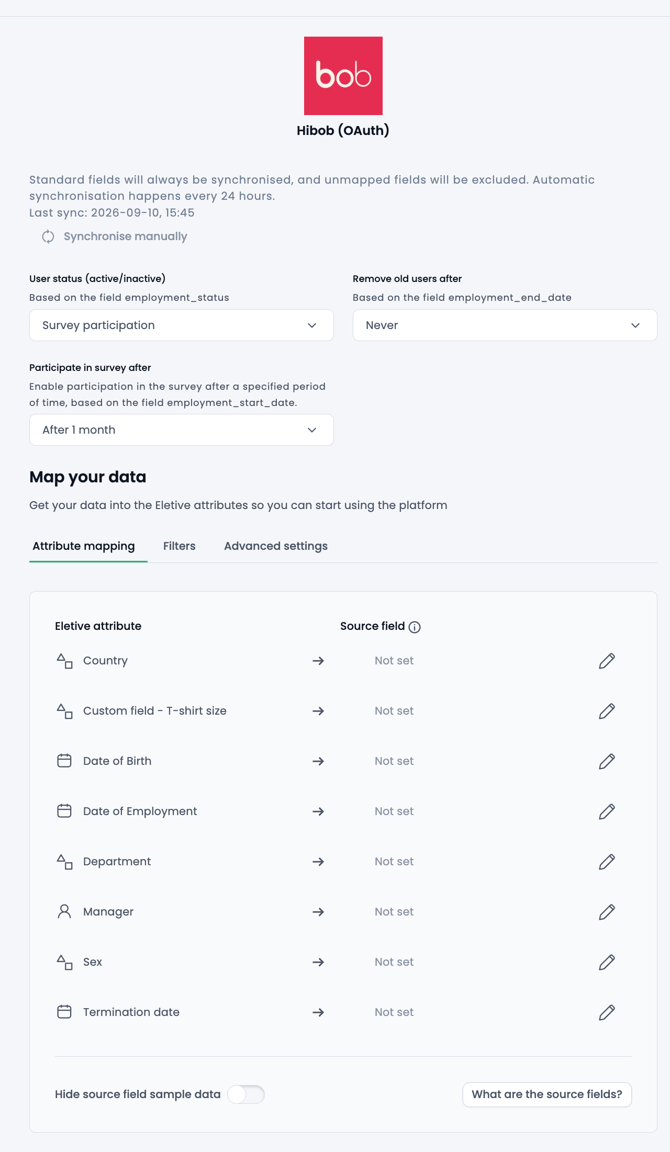
- Set up lifecycle management - what should happen to inactive users and delete triggers.
- Field mapping - Eletive automatically maps the essentials, such as first name, last name, email from HiBob. Anything else (for example department, job title, custom fields, etc) can be mapped under the Attribute Mapping tab.
- Add filters (if needed) - the "People data access" step in the installation process is the recommended way of configuring filters, but it's also possible to filter from this end too through the Filters tab.
For more detailed run down one configuration option go here.
Data sync flows
Enabling (press Enable) the integration will schedule syncs to run automatically once every 24 hours.
You can also trigger a manual sync at any time, limited to once per 24 hours.
Revoking access
Revoking takes both of the steps below. Completing only one leaves the connection in a broken or misleading state, and that state cannot be detected for you (see Troubleshooting).
- In Eletive, navigate to Settings > Integrations
Select the "Edit HRIS connection" option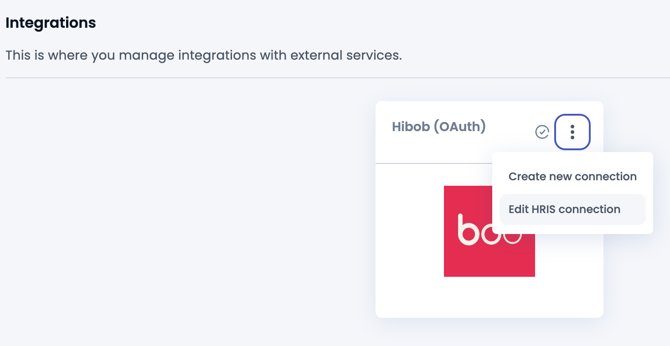
Then "Delete" the connection. Now proceed to uninstall the app in Hi
Bob Marketplace.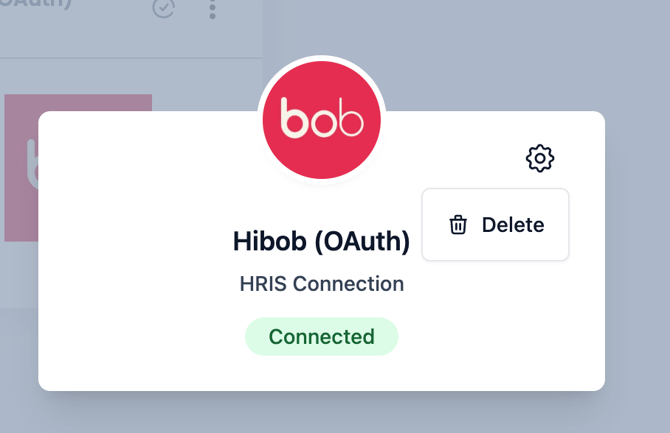
- In HiBob marketplace
Go to Settings > Integrations > Marketplace apps, find the app, and click Uninstall.
Always do both. HiBob exposes no way to read whether the app is still installed, so a half-revoked connection cannot be reconciled on your behalf:
- Uninstalling in HiBob but not disconnecting here leaves a connection that still shows as connected while every call fails with a
401error. - Disconnecting here but not uninstalling in HiBob leaves the app installed in your tenant, listed under Marketplace apps, even though nothing is using it.
Once both steps are done, the integration can no longer call your HiBob tenant. You can reconnect at any time by repeating the steps in Installation.
Troubleshooting
"You don't have permission to install apps"
Your HiBob user does not have the permission to install Marketplace apps. Ask a HiBob admin in your tenant to either grant you that permission or complete the connection step for you.
"App not found", or a blank install screen
The app's HiBob configuration is missing or incorrect. This is set up by the team that provides the integration, not by you: contact them so they can check it on their side.
"Invalid redirect URI"
Same cause as above: a configuration issue on the integration provider's side, not something you can fix. Let them know which URL was in your browser's address bar when the error appeared.
401 errors, or a connection that looks connected but is not
This is the signature of a half-finished revoke/uninstallation, where only one of the two steps in Revoking access was completed. Complete the missing step, then connect again from scratch if you still need the integration.
Support
Questions or issues? Reach out to us at support@eletive.com, or contact your Eletive representative.