![Main - White500.png]](https://help.eletive.com/hs-fs/hubfs/Main%20-%20White500.png?height=35&name=Main%20-%20White500.png)
Eletive Copilot can suggest actions and objectives and create them in Eletive for you. Copilot never creates an action or objective on its own. Copilot first shows a proposal, and nothing is created until you select the items you want to create.
How to create actions or objectives with Copilot
-
Open Eletive Copilot from the Ask Copilot icon in the top right corner.
-
Ask Copilot to create an action or objective, for example "Can you give me two suggested actions based on the latest engagement report?"
-
Copilot answers with a proposal, that shows:
The proposal shows:
-
What will be created: the suggested actions or objectives.
-
Where: the section and scope they will be created in, for example "in Actions, organisation scope".
-
Expand a suggestion to see the "Fields to be filled".
-
Mark the checkbox for each suggestion you want to create.
-
Press the "Create selected"-button.
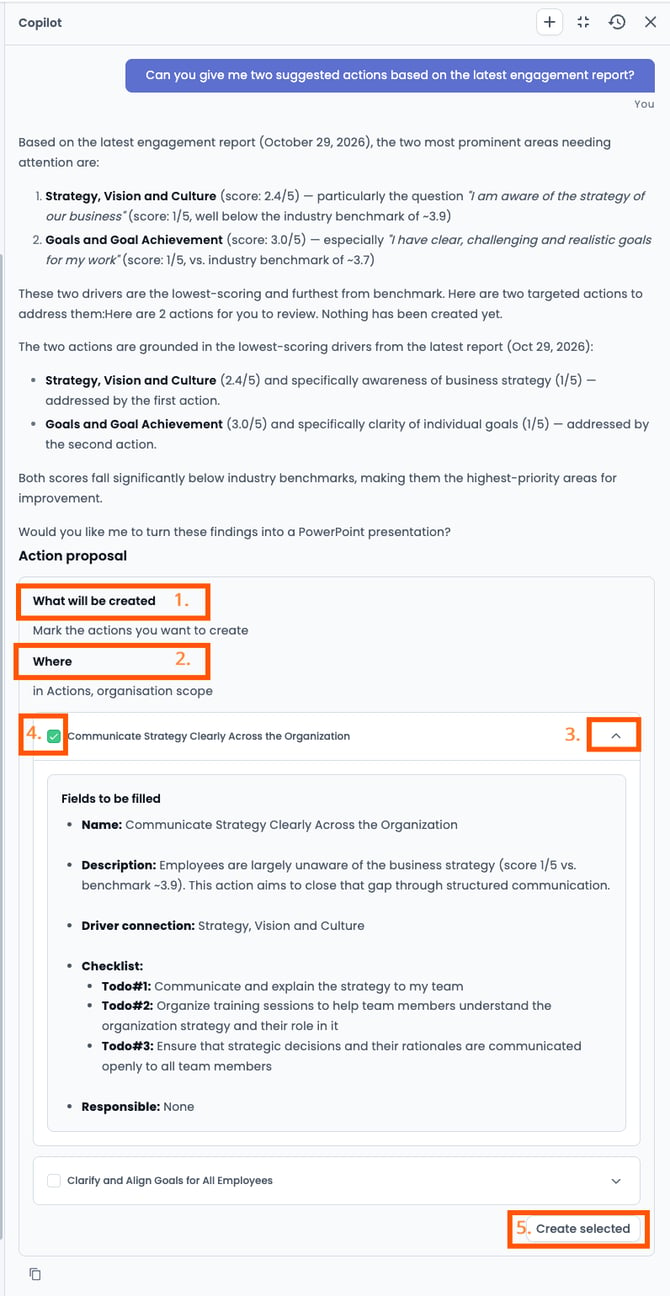
To change a suggestion before it is created, for example to change the scope from Organization to Segment, reply to Eletive Copilot in the chat and describe the changes you want. Copilot updates the proposal, and nothing is created until you press the “Create selected”-button.
The created actions appear in Actions, and the created objectives appear in Objectives. You can edit them and update progress there, the same way as manually created actions and objectives.
Note: Actions created with Eletive Copilot are Public by default. To create a Private action, ask Copilot in the chat to make the action Private.
Eletive Copilot does not set a Deadline for actions. To add a Deadline, open the action in Actions after it is created and edit it.
Create actions from Tailored advice
When you open "Advice" for a question in a segment engagement report, Eletive Copilot's tailored advice includes suggested actions. You can create them directly by marking the actions you want and pressing the "Create selected"-button.
Create actions after Generate summary
When you use the "Generate summary"-button in the engagement report, Eletive Copilot asks at the end of the summary whether you want to create actions or export the summary to PowerPoint. Answer in the Copilot chat to continue.
Who can create actions and objectives with Eletive Copilot
Eletive Copilot can only create actions and objectives for segments where you already have permission to create actions and/or objectives. For example, Managers can create actions for the segments they are assigned to.
The Actions and Objectives features must be active for your organization, and Copilot must have account data access for your role. If you cannot create actions or objectives with Copilot, contact your organization's Eletive administrator.
AI credits
Requests to Eletive Copilot use AI credits, including requests to suggest and create actions and objectives. Read more in AI credits.
Note: Eletive Copilot's suggestions are generated by AI from your results. Review each suggestion before you create it.