![Main - White500.png]](https://help.eletive.com/hs-fs/hubfs/Main%20-%20White500.png?height=35&name=Main%20-%20White500.png)
Target audience: Administrators, Managers
Let's get started
Note: To utilize this feature you need to have a date attribute for the employment date and termination date. Read more about attributes here.
Remember to navigate to the attribute specific settings for your termination date attribute and enable "Segment on future dates".

Step 1 - Enable Feature and Choose Type and Target Group
- First step is to enable the Lifecycle Surveys feature. This is done by navigating to Settings and Features.
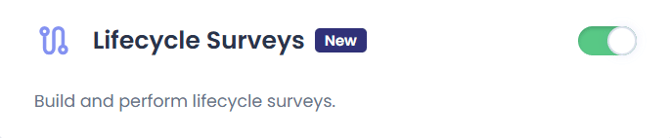
- Go to Settings and Lifecycle Surveys: Click on Create Survey in the top right corner.
- Select survey type: Choose between an Onboarding or Exit survey.
- Set survey title: Name the survey to reflect its purpose (e.g., “Exit Survey – Sales team”).
- Select target group: Choose whether the survey goes to the entire organization or a specific segment.
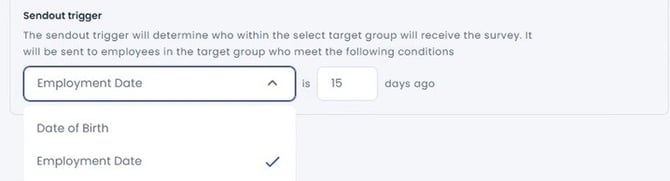
- Set a sendout trigger: Decide when the survey should be sent based on employee start/end dates.
- Define send-out time and time to respond:
- Pick a time of day for the send-out
- Set how long employees have to complete the survey (e.g., 2 weeks)
- Exclude data from segments: Select segments that should not have the data displayed. Leave empty if the generated data should be shown in all segment reports.
- Save as draft or cancel if you're not ready to proceed.
Onboarding survey trigger explained - X days ago
Employees need to be added to the target group before the sendout trigger occurs. For example: If a user is added to your Eletive organisation on day 16 of their employment, and your sendout trigger is set to "15 days ago", they will not receive a survey invitation.
Trigger example:
- "Date of Employment"= 18th of May
- "Sendout trigger" = "Date of Employment is 3 days ago"
The survey will be sent on the 20th of May for users with this employment date. It counts the actual day that's set on the date attribute.
Exit survey trigger explained - X days into the future
Employees with a end date where the Termination date within X days into the future will receive a survey.
This way, more abrubt terminations where the end date is added later than usual are still captured. In these cases, the exit survey won’t rely on the same timing logic as the onboarding survey
Trigger example:
- "Sendout trigger" ="Termination date" is 14 days into the future
- "Start time" = 8.00 AM
Target group are users with a Termindation date that's between today - 14 days into the future.
Step 2 - Survey questions
On the second page, you’ll:
-
Review all included questions
-
Choose whether to allow comments on 1–5 and NPS questions
-
Make final edits or adjustments to questions before publishing
Read more about the question battery and how to make eventual adjustments here:
Step 3- Review your settings and Customize invite
Before launching, you’ll see a summary of:
-
Target group
-
When it will be sent
-
How long it will remain open
-
Number of questions included
You can also customize the invite message that will be sent to participants.
Launch or Save as draft
- Click Launch to send the survey
- Or click Save as draft to finish later