![Main - White500.png]](https://help.eletive.com/hs-fs/hubfs/Main%20-%20White500.png?height=35&name=Main%20-%20White500.png)
Each user in Eletive has a monthly AI credit limit. It is set by an administrator, either for the user's role or for the user individually. The limit applies to AI-powered features in Eletive, such as Eletive Copilot and the AI Writing Assistant.
When you reach your monthly limit, you can send a request for more credits. Your administrator is notified and can raise your limit in the AI settings.
Note: Monthly limits reset on the 1st of each month. If you don't request more credits, you will be able to use AI features again once your limit resets.
How to request more AI credits
-
If you have reached your limit, either by interacting with Eletive Copilot or while using the AI writing assistant when drafting and/or rewriting replys to comments, you will see the message "You have reached your monthly limit", together with the date your limit resets.
-
Click on Request more credits
-
A confirmation appears that your request has been sent to your administrator
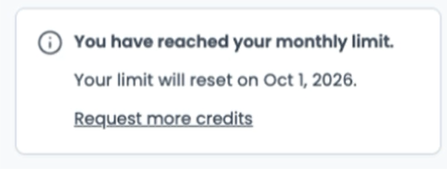
While your request is waiting to be handled by your administrator, the message shows "Request pending". When your administrator raises your limit, you can start using AI features again straight away.
Receiving credit requests as an administrator
As an administrator, you will get a notification when users ask for more credits. The notification indicates how many people have sent a request.
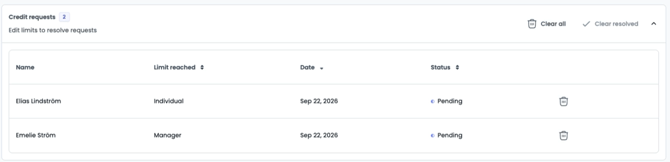
Follow the link in the notification to go to Settings > AI, where all requests are listed under in the Credit requests section. For each request, you can see:
-
Name of the user who sent the request
-
The limit the user has reached. This is either their role (for example, Manager) or Individual if the user has a personal limit
-
Date when the request was sent
- Statusf or the request (Pending or Resolved)
How to resolve a credit request
To resolve a request, check the Limit reached column to see which limit to raise:
-
If the limit reached is a role, raise the value for that role under Monthly limit per user.
-
If the limit reached is Individual, raise the user's limit under Individual limits
-
The request status then changes from Pending to Resolved automatically, and the user can start using AI features again straight away.
Raising a role limit applies to all users with that role, not only the person who sent the request. If you only want to give one person more credits, click Add under Individual limits and set a limit for that user.
Note: Note: A higher monthly limit applies immediately, but the user's usage for the month is not reset. The user only gets the difference between the old and the new limit, not the full new limit.
Example: A user has used their full limit of 1 000 credits this month. If you raise the limit to 1 500, they get 500 more credits for the rest of the month.
Managing the list of requests
You can keep the Credit requests list tidy in three ways:
-
Clear resolved: removes all resolved requests
-
Clear all: removes all requests, including pending ones
-
Trash icon: removes a single request
As an administrator, you decide whether to approve a request for more AI credits. To decline a request, click the trash icon to remove it without raising the limit. The user can send a new request later if they need to.
If your organisation's total AI credit balance is running low, you can buy more credits. Read more in AI credits.